Team Roles & Permissions
Invite teammates and clients to a workspace as an Admin or a Member, without sharing your login.
How do I invite someone to my workspace?
Open Manage Team in the dashboard sidebar.
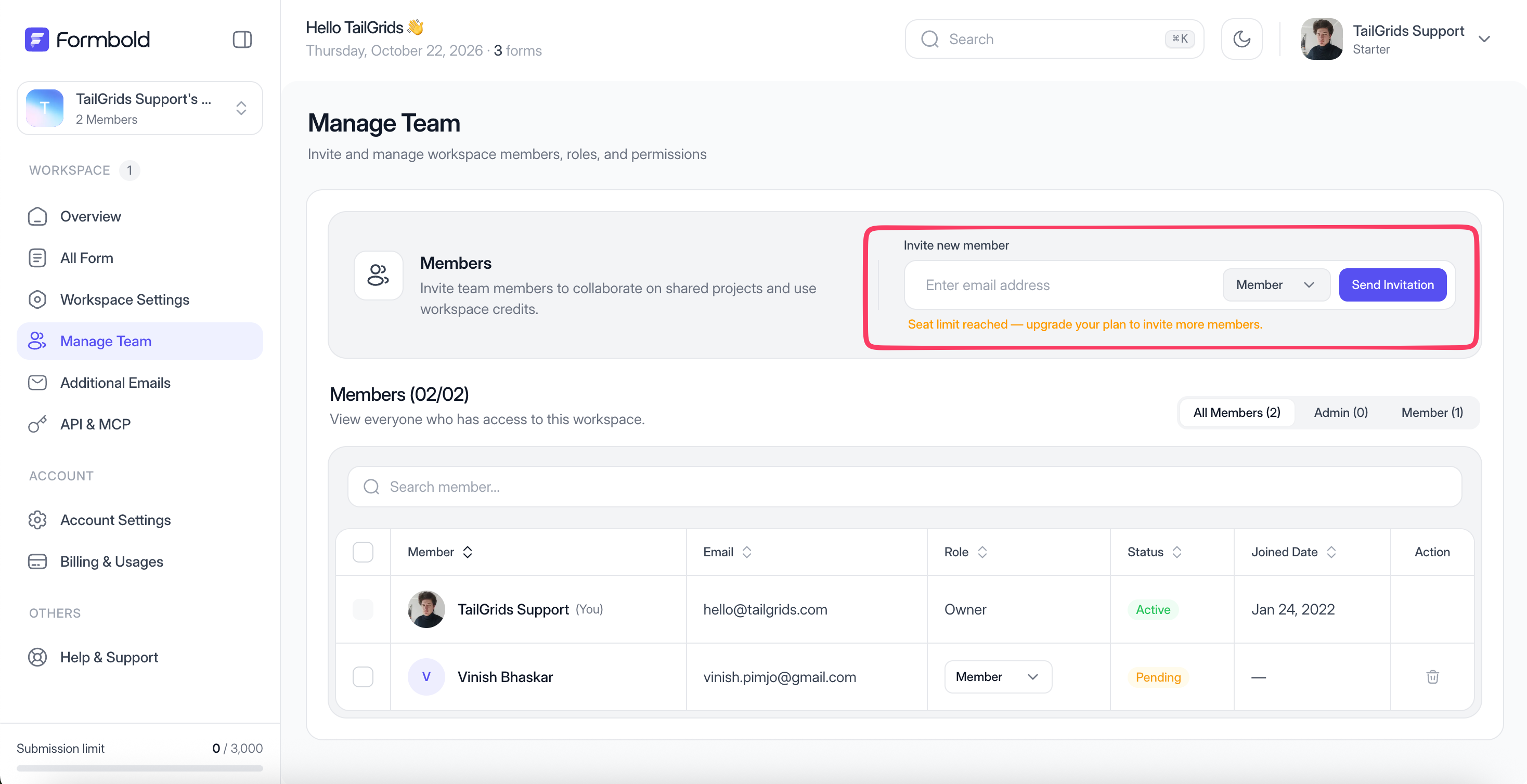
- Enter the person's email address.
- Choose a role: Admin or Member.
- Send the invite.
They join with their own Formbold account. The Members list shows everyone in the workspace, with a counter like "01/05" for the seats you've used.
Which roles are there?
Two you can invite people as, plus the owner.
The owner is the person who created the workspace, or who received it through Transfer Ownership. The owner controls ownership and can delete the workspace.
An Admin is for people who help you run the workspace, like a project lead or an agency partner.
A Member is for people who work with forms and submissions day to day, like a client's sales team.
When in doubt, start someone as a Member. It's easy to promote a person later, and awkward to take access back.
How many people can I add?
It depends on your plan: 1 team member on Free, 2 on Starter, 5 on Premium and 20 on Business. Need more seats? Upgrade from the Upgrade Plan button.
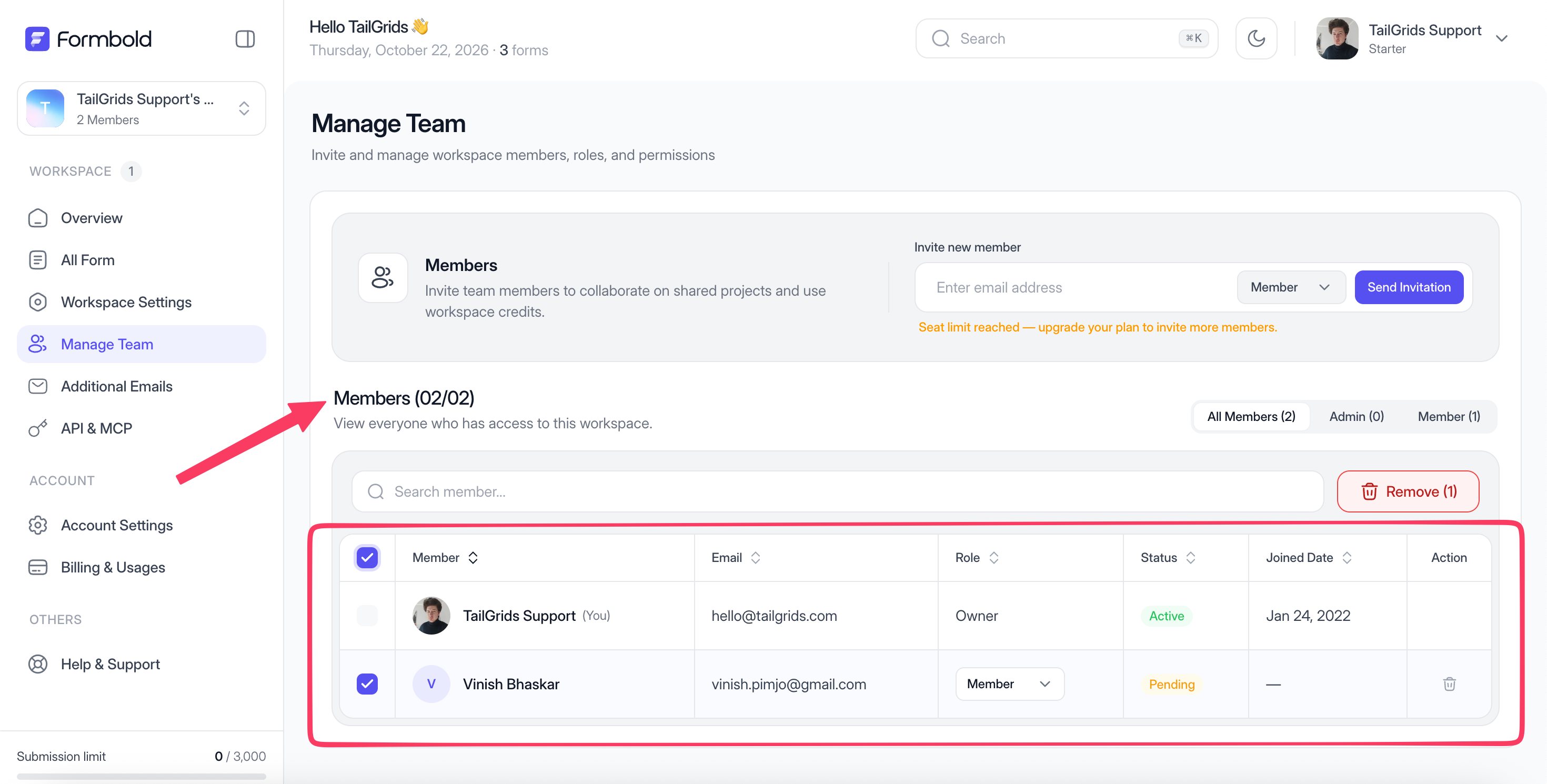
How do I find a teammate in a long list?
Use the filters above the Members table. On a busy agency workspace, filtering by role is the quickest way to check who still has Admin access.
Last updated: October 19, 2026