Documentation
Slack Integration
Receive instant notifications in any public or private Slack channel when visitors submit your form.
Overview
Keep your entire sales, support, or engineering team updated in real time by piping incoming submissions into a dedicated Slack channel.
Requirements
- An active Formbold form.
- A Slack workspace with administrative or integration permissions to install apps.
- A designated public or private Slack channel (e.g., #contact-leads or #support-tickets).
Step-by-Step Connection Guide
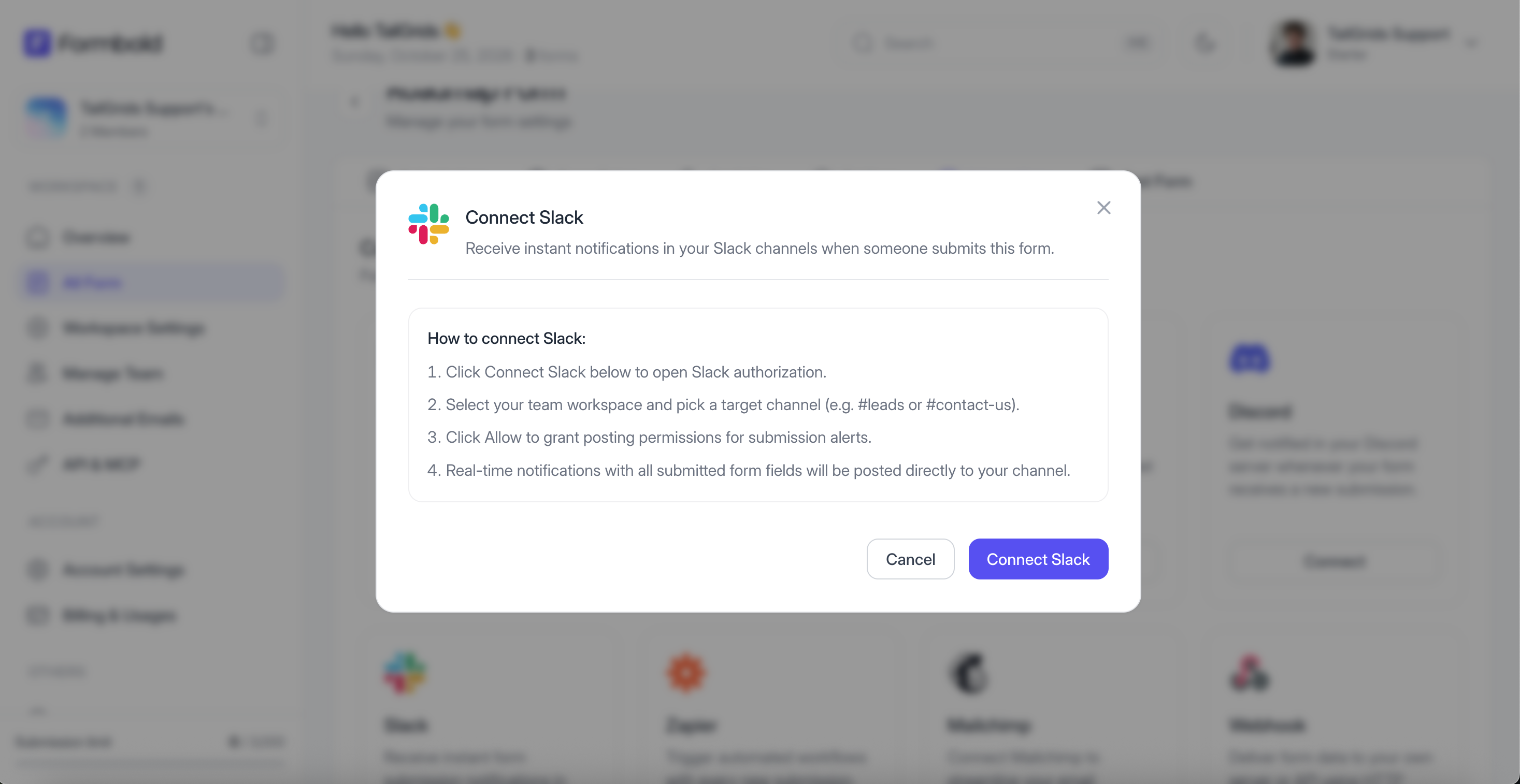
- In your Formbold dashboard, navigate to the 'Integrations' tab.
- Locate 'Slack' in the integrations catalog and click 'Connect'.
- You will be redirected to the secure Slack authorization screen.
- Select your Slack workspace in the top right corner.
- Choose the destination channel where submission alerts should be posted.
- Click 'Allow' to grant Formbold permission to send messages.
- You will be returned to Formbold with Slack marked as 'Connected'.
Testing Your Slack Integration
Submit a test message through your frontend form. Within seconds, a formatted message card displaying all submitted fields will appear in your chosen Slack channel!
Managing or Disconnecting
To change the target channel or disconnect Slack, click the 'Configure' or 'Disconnect' button on the Slack card in your Integrations tab.
Last updated: September 10, 2026