Spam Protection
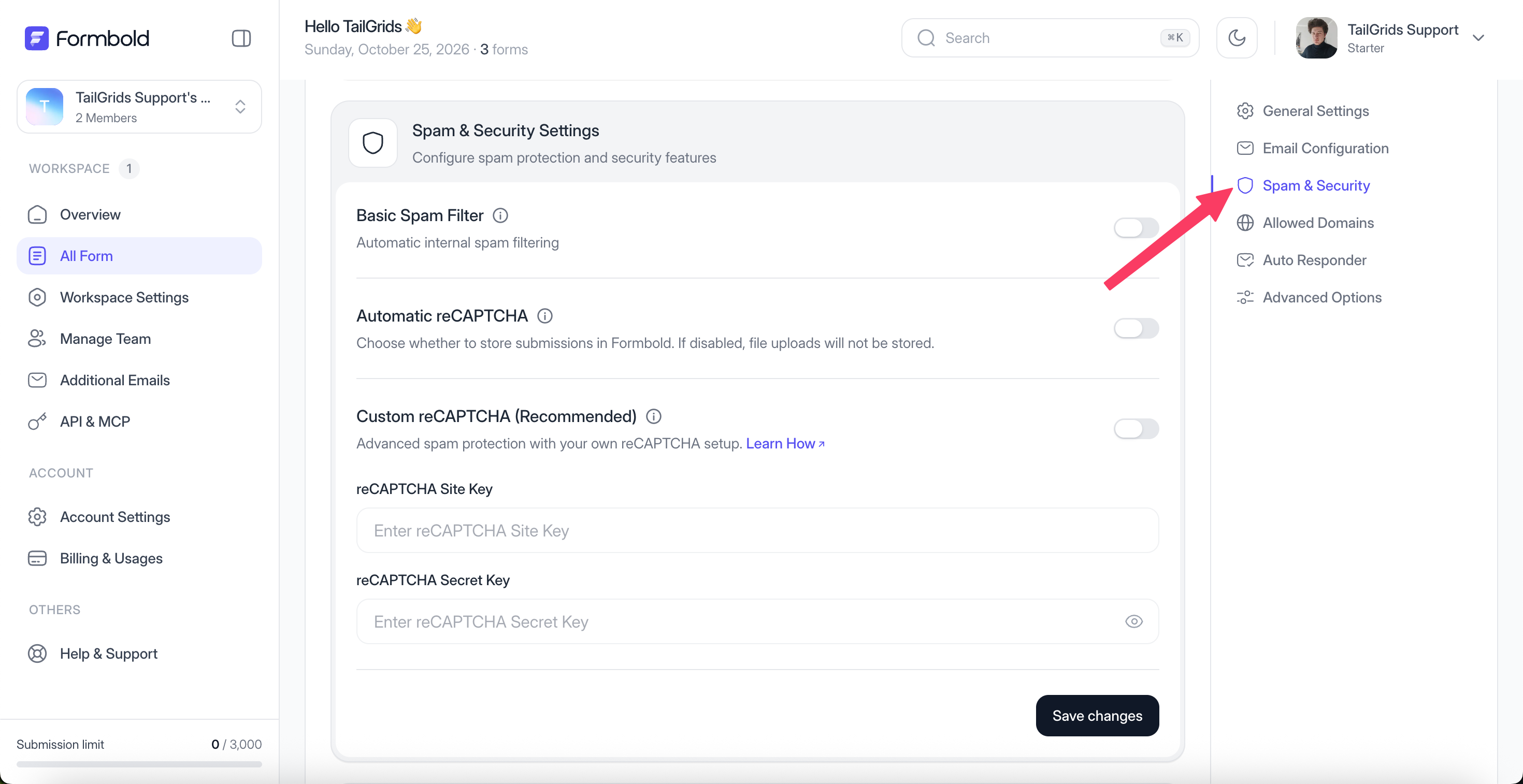
Block spam with Formbold's Basic Spam Filter, Automatic reCAPTCHA or your own Google reCAPTCHA keys. All three live in Spam & Security.
Where are the spam settings?
Open your form, click Settings and scroll to Spam & Security. You'll find three toggles there: Basic Spam Filter, Automatic reCAPTCHA and Custom reCAPTCHA.
Anything Formbold flags as spam goes to the Spam folder in Submissions, not your Inbox. Check that folder once in a while, especially in the first week after you change these settings.
What does the Basic Spam Filter do?
It checks each submission on our servers, so your visitors don't see a puzzle or a checkbox. Turn it on for every form. There's no downside, and it catches a lot of the obvious junk.
When should I use Automatic reCAPTCHA?
When you want a reCAPTCHA check without setting anything up. Formbold adds the check itself, with no keys and no code changes. It's designed for standard HTML forms that post straight to your endpoint.
If your form submits with fetch() or Ajax, use Custom reCAPTCHA instead.
How do I set up Custom reCAPTCHA with my own keys?
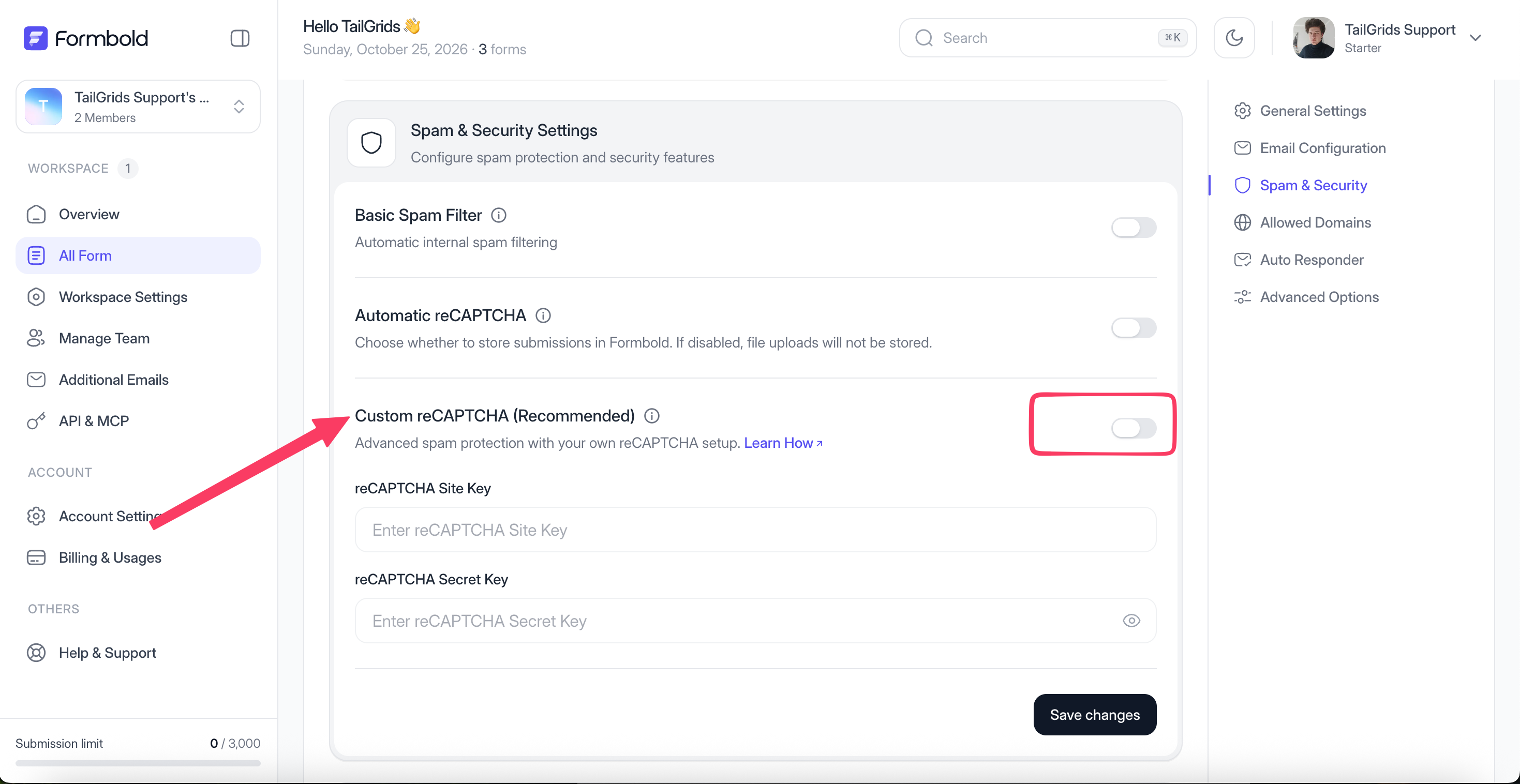
The dashboard marks Custom reCAPTCHA as recommended, and it's the option I'd pick for any form that gets real traffic. It works with plain HTML posts and with fetch() requests.
- Go to the Google reCAPTCHA Admin Console at https://www.google.com/recaptcha/admin.
- Register your site. Choose reCAPTCHA v2, the "I'm not a robot" checkbox, and add your domain. Add
localhosttoo if you test locally. - Copy the Site Key and the Secret Key.
- In Formbold, open Settings > Spam & Security and turn on Custom reCAPTCHA.
- Paste the Site Key and Secret Key into their fields and save.
- Add the reCAPTCHA script and widget to your form, as below.
The Learn How link next to the toggle brings you back to these steps.
<!-- 1. Load the Google reCAPTCHA script -->
<script src="https://www.google.com/recaptcha/api.js" async defer></script>

<form action="https://formbold.com/s/YOUR_FORM_ID" method="POST">
  <label for="email">Email:</label>
  <input type="email" name="email" id="email" required />

  <label for="message">Message:</label>
  <textarea name="message" id="message" required></textarea>

  <!-- 2. Put the widget just before the submit button -->
  <div class="g-recaptcha" data-sitekey="YOUR_RECAPTCHA_SITE_KEY"></div>

  <button type="submit">Submit</button>
</form>
The Site Key goes in your HTML. The Secret Key goes only into Formbold. Never put the Secret Key in your page.
Why are real submissions failing after I added reCAPTCHA?
Usually the domain isn't registered in the Google console. Add every domain that serves the form, including www and staging. The other common cause is pasting the keys the wrong way round, so check that the Site Key and Secret Key are in the right fields.
Can I limit which websites can use my form?
Yes. Allowed Domains, just below Spam & Security, rejects submissions that come from sites you haven't listed. It's on Starter and higher. See Form Settings.
Do webhooks receive spam?
Not by default. The Webhook dialog has a separate Receive submissions marked as spam checkbox, off unless you turn it on. See Webhooks.
Last updated: October 19, 2026