Email Notifications
Choose who gets an email for each submission and what that email looks like. It's all in the Email Configuration card on your form's Settings tab.
Where do I set up email notifications?
Open your form, click the Settings tab and find the Email Configuration card. Email is built in. You don't connect it as an app, and it works on every plan.
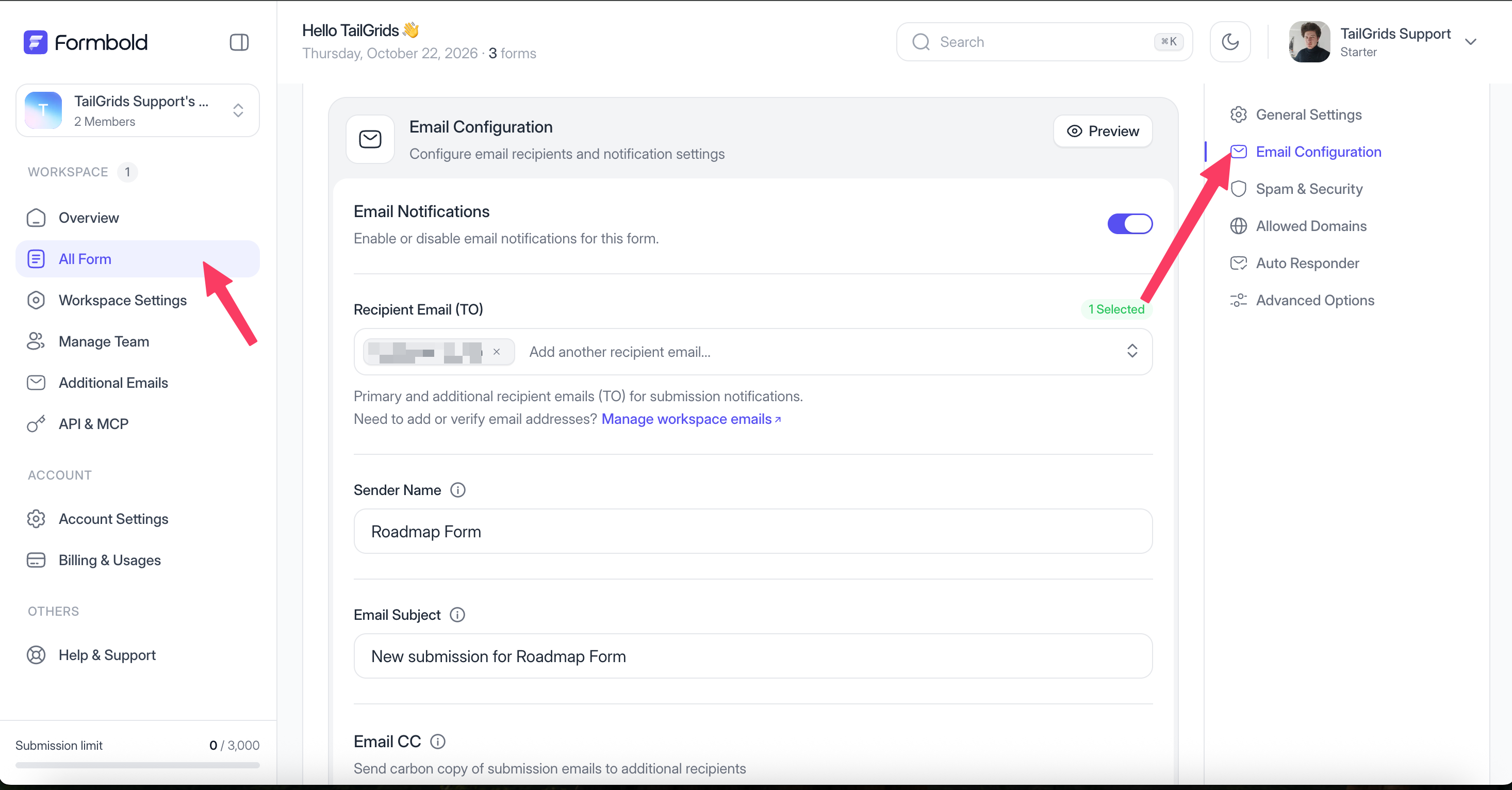
Make sure the Email Notifications toggle is on. If it's off, submissions are still saved and still go to your connected apps, but nobody gets an email.
How do I choose who receives each submission?
Use Recipient (TO). It's a multi-select, so you can pick more than one address. Sending one form to several recipients needs Starter or higher.
The list only shows addresses you've added to your account. To add a new one, click Manage workspace emails under the field, or open Additional Emails in the sidebar. See Additional Emails.
How do CC and BCC work?
CC sends a visible copy to another address. BCC sends a hidden copy, which is handy for an archive inbox or a manager who wants to see volume without being on every reply thread.
My advice: put the person who actually replies in TO, and everyone else in CC or BCC. When three people are all in TO, nobody is sure who should answer.
Can I change the sender name and subject line?
Yes. Sender Name is the name people see in their inbox, like "Acme Website". Use something your team will recognise at a glance.
Email Subject sets the subject line of each notification. Custom subjects are available on Starter and higher. A subject that names the form, like "New demo request (website)", makes inbox filters easy to set up.
What is the intro text, and which tokens can I use?
Intro text is a short line at the top of each notification email. You'll find it under Advanced Options on the Settings tab. You can insert three tokens:
+nameadds the submitter's name+emailadds the submitter's email+formadds the form name
For example: "New message from +name (+email) on +form". This only works if your form fields are actually called name and email.
Can I group notification emails into threads?
Turn on Email Grouping under Advanced Options. Emails with the same subject are grouped into one thread in your mail app. That's tidy for a busy form, but if you triage each lead separately, leave it off.
How do I add my logo to notification emails?
Upload it under Email Branding in Email Configuration. The logo can be a JPEG, PNG, WebP or SVG file, up to 2 MB. A wide, short logo on a transparent background looks best in most mail apps.
Removing Formbold branding from emails is part of the Premium and Business plans.
How do I preview the email before going live?
Click Preview in Email Configuration to see the email with your current settings. Then send a real one from the Test Form tab and open it on your phone. Mobile mail apps are where layouts usually break.
What else is in Email Configuration?
Two settings that aren't about email but sit in the same card:
- Redirect URL sends people to your own thank-you page after they submit a plain HTML form. Available on Starter and higher.
- HTTP API allows programmatic access to this form's submissions. Turn it on if you'll read submissions with the REST API or the MCP server.
Why didn't my notification email arrive?
Check these in order. First, that Email Notifications is on. Second, that the address is in Recipient (TO). Third, your spam folder. Most missing emails are in one of those three places. If the submission isn't in Submissions either, the problem is on the form side, so check your action URL.
Last updated: October 19, 2026