Form Settings
A tour of your form's Settings tab, card by card: General, Email Configuration, Spam & Security, Allowed Domains, Auto Responder, Advanced Options and Danger Zone.
Where are my form's settings?
Open the form from All Forms and click the Settings tab. Settings are per form, so changing one form never affects another. The cards below appear in the same order as in the dashboard.
What's in the General card?
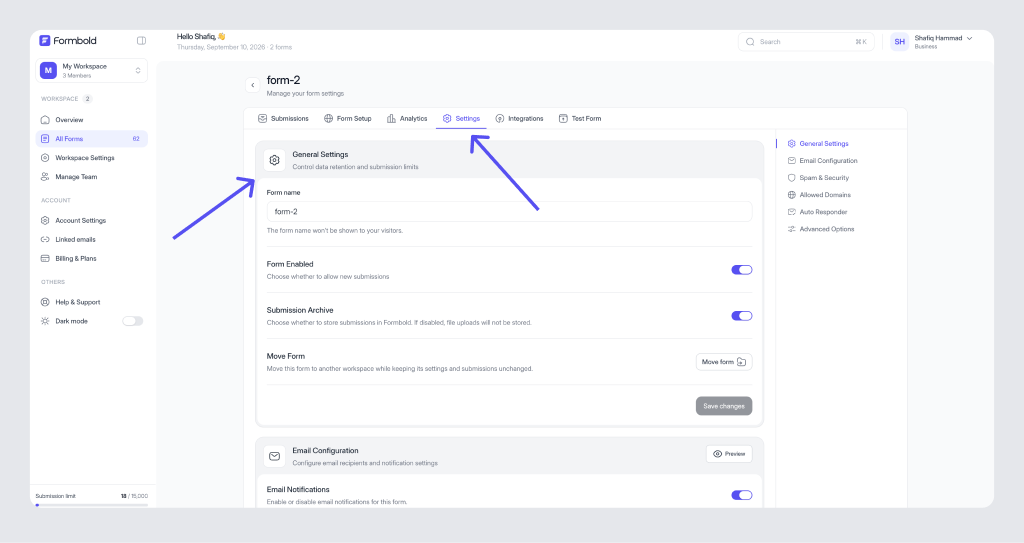
Form name is for you and your team. Visitors never see it, so name forms by site and purpose, like "Acme: Contact".
Form Enabled switches the form on or off. When it's off, Formbold rejects new submissions. Use it to pause an old form instead of deleting it.
Submission Archive decides whether Formbold stores submissions. Turn it off and submissions are still sent to email and your apps, but file uploads are not stored. More in Data Retention and Submission Archive.
Move Form moves the form to another workspace. Handy when a client project grows into its own workspace. After a move, open Form Setup and check the endpoint your site uses.
What's in Email Configuration?
This is where you set who gets an email for each submission: Recipient (TO), CC, BCC, Sender Name, Email Subject, the Email Branding logo and a Preview button. It also holds Redirect URL and the HTTP API toggle.
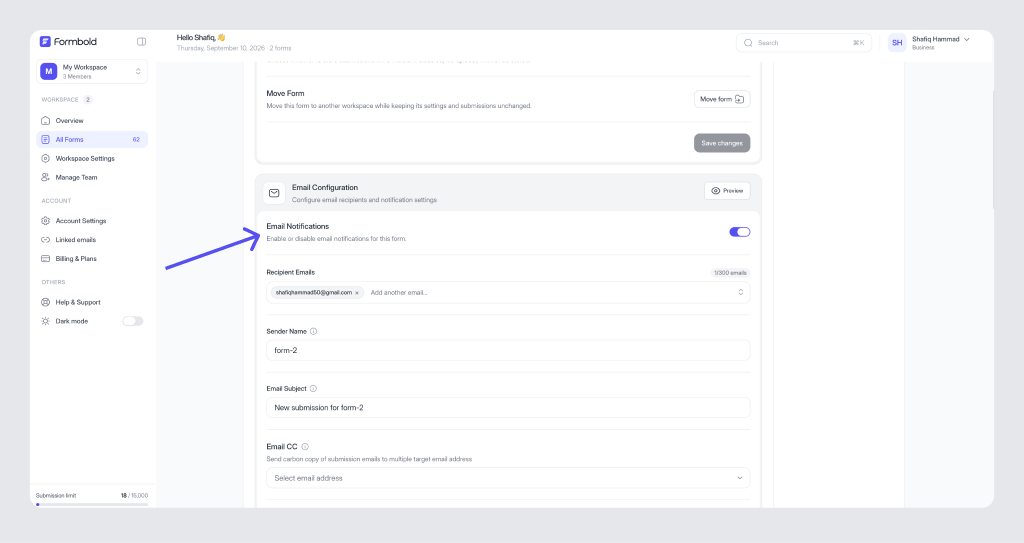
Each field is explained in Email Notifications. Two quick notes on plans: multiple recipients, custom subjects and redirects need Starter or higher, and removing Formbold branding needs Premium or Business. The logo can be JPEG, PNG, WebP or SVG, up to 2 MB.
What's in Spam & Security?
Three toggles: Basic Spam Filter, Automatic reCAPTCHA and Custom reCAPTCHA, which takes your own Site Key and Secret Key. Turn on the basic filter for every form. The setup steps are in Spam Protection.
How do Allowed Domains work?
Turn on Allowed Domains and list the sites that may submit to the form, such as yourdomain.com and staging.yourdomain.com. Submissions from anywhere else are rejected. It's on Starter and higher.
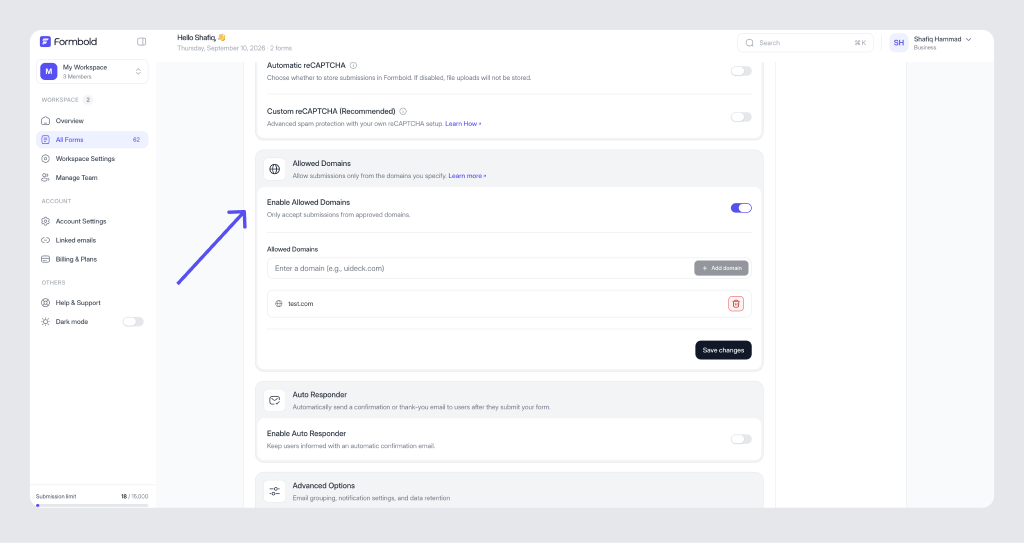
List every domain the form really lives on, including www if you use it. A missing staging domain is the usual reason a test "doesn't work".
How do I send an automatic reply?
Turn on Auto Responder. Formbold then emails the person who submitted the form, which is a nice way to confirm you got their message. It's on Premium and Business.
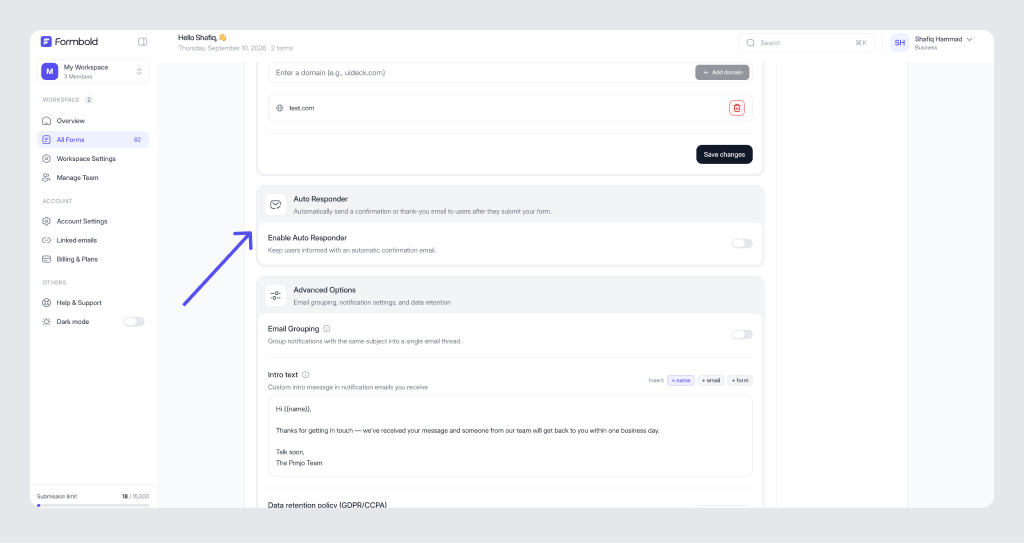
Your form needs an input with name="email", or Formbold has nowhere to send the reply. Keep the message short and set expectations, like "We reply within one working day." Turn on spam protection too, so you're not sending replies to bots.
How do file uploads work?
Add enctype="multipart/form-data" to your form and a file input with a name:
<form
  action="https://formbold.com/s/YOUR_FORM_ID"
  method="POST"
  enctype="multipart/form-data"
>
  <label for="email">Your Email:</label>
  <input type="email" name="email" id="email" required />

  <label for="resume">Attach your CV (PDF or DOCX):</label>
  <input type="file" name="resume" id="resume" />

  <button type="submit">Submit Application</button>
</form>
File uploads are on Starter, Premium and Business. Starter takes up to 5 files of 10 MB each per submission, Premium up to 10 files of 25 MB, and Business up to 10 files of 50 MB. Files are stored with the submission, so keep Submission Archive on for forms that take uploads.
What's in Advanced Options?
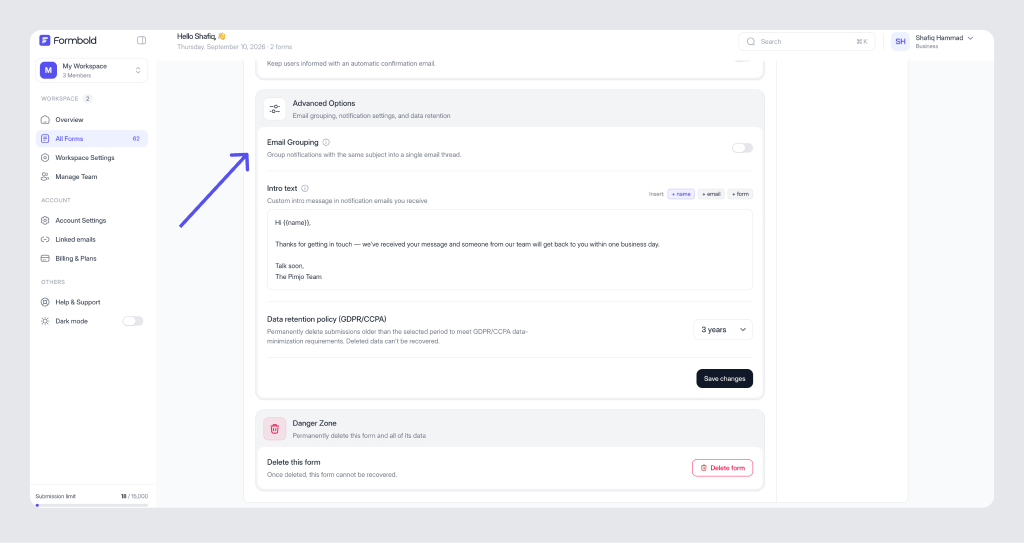
Email Grouping puts notifications with the same subject into one thread in your mail app.
Intro text adds a line to the top of each notification email. You can use +name, +email and +form in it.
Data retention sets how long submissions are kept: 7 days, 30 days, 3 months, 6 months, 1 year, 2 years, 3 years or Never. See Data Retention.
How do I delete a form?
Use Danger Zone at the bottom of the Settings tab. Deleting a form removes it and all its submissions for good. If you might need the data, export it from Submissions first, or just switch Form Enabled off.
Where did submissions and analytics go?
They have their own guides now: Manage Form Submissions and Form Analytics.
Last updated: October 19, 2026