Documentation
Notion Integration
Sync web form responses directly into a structured Notion database with customized property mapping.
Overview
Send contact requests, job applications, bug reports and survey responses straight into a Notion database.
Step 1: Prepare Your Notion Database
Before connecting, create a database in Notion with properties that correspond to your form fields. For example:
- Title property: 'Name' or 'Submission'
- Email property: 'Email Address'
- Text property: 'Message' or 'Details'
- Phone property: 'Phone Number' (optional)
- Created Date property: 'Submitted At'
Step 2: Authorize Notion in Formbold
- In Formbold, go to the 'Integrations' tab and click 'Notion'.
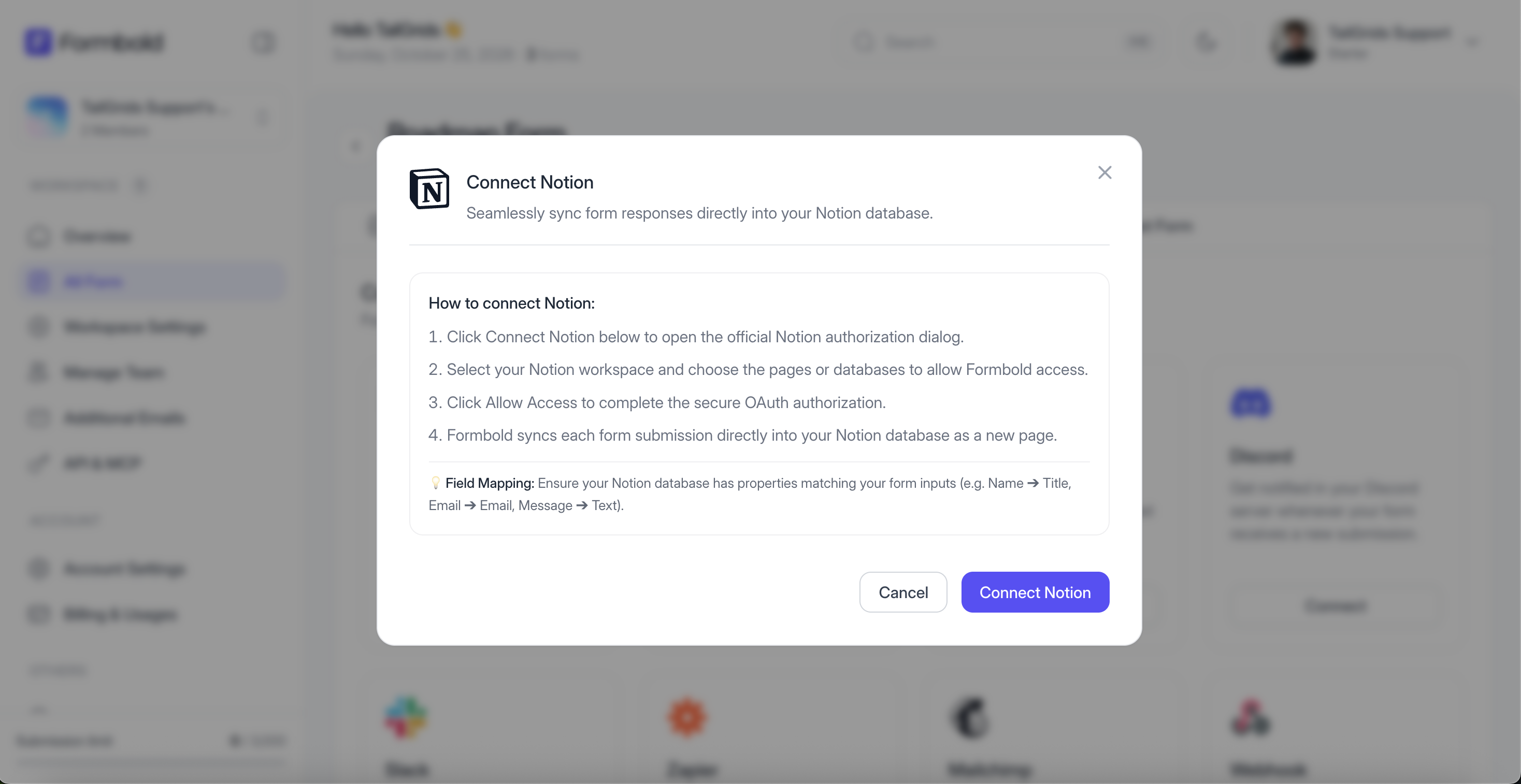
- Click 'Connect to Notion' to launch the OAuth authorization screen.
- Select the Notion workspace and grant access to the specific page containing your database.
- Click 'Allow Access'.
Step 3: Configure the Field Mapper
- Select your target database from the dropdown menu.
- Use the Field Mapper to link each Formbold form input (e.g. name, email, message) to its matching Notion property.
- Click 'Save Integration'.
Testing Your Integration
Submit a test entry on your frontend form and verify that a new page row appears instantly in your Notion database.
Last updated: September 10, 2026