Additional Emails
Add the email addresses your forms can send notifications to, so they show up in Recipient (TO), CC and BCC.
What are Additional Emails?
They're the addresses, other than your own login email, that your forms are allowed to send to. A client's inbox, your sales alias, a shared support address. Once you add one, it shows up in Recipient (TO), CC and BCC on every form's Email Configuration card.
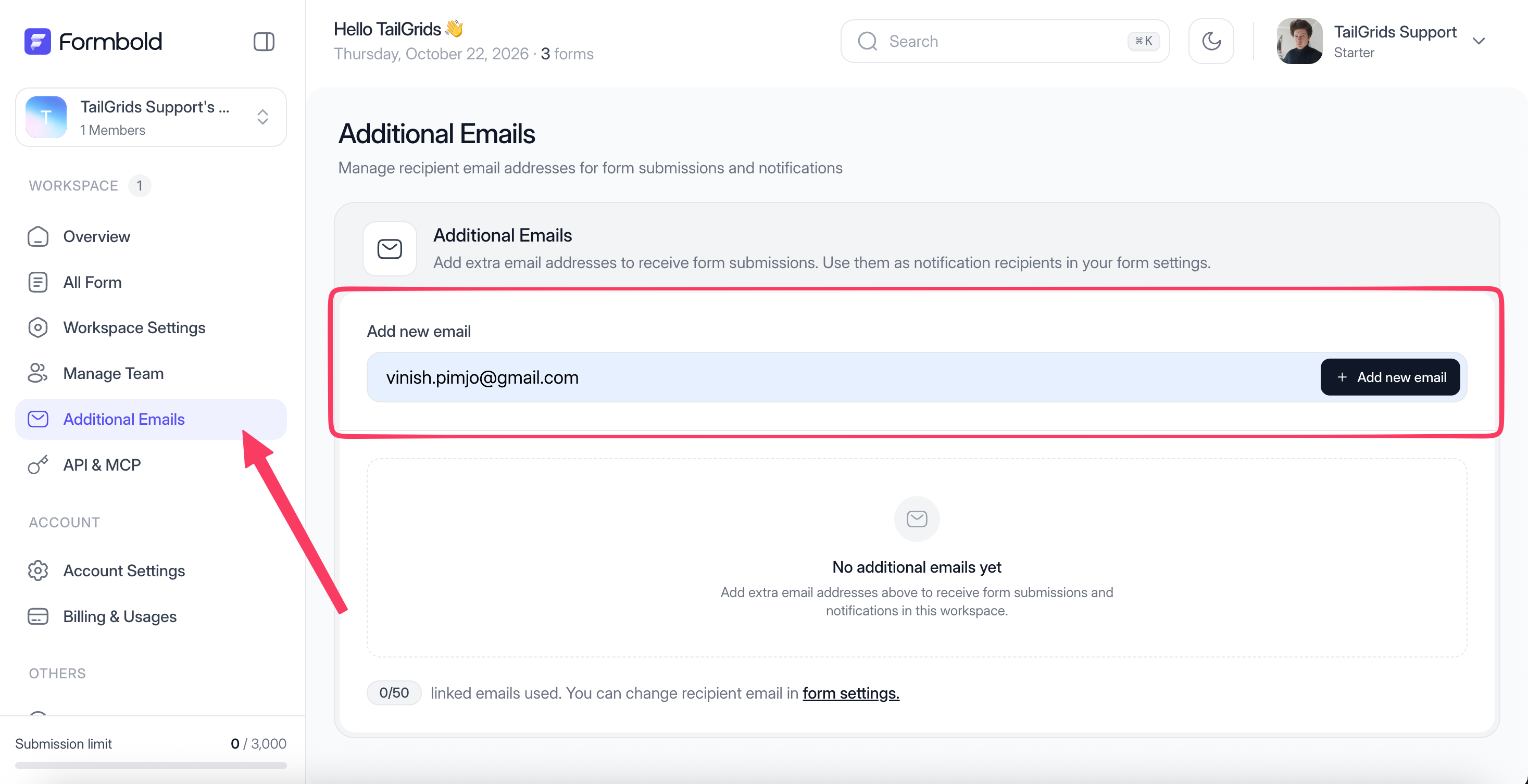
How do I add an email address?
- Open Additional Emails in the dashboard sidebar. You can also get there from Manage workspace emails under Recipient (TO) on a form.
- Enter the address, like
[email protected], and add it. - If Formbold sends a confirmation email, ask the owner of that inbox to click the link in it.
- Open a form's Settings tab and pick the address in Recipient (TO), CC or BCC.
Add the address before you hand a form over to a client. It saves a back-and-forth on launch day.
How many addresses can I add?
The counter at the top of the page shows how many you've used, for example "0/100" on Premium. The limits per plan are:
| Plan | Additional emails |
|---|---|
| Free | 2 |
| Starter | 50 |
| Premium | 100 |
| Business | 300 |
Sending one form to more than one recipient needs Starter or higher.
How do I remove an address?
Delete it from the Additional Emails page. Do this when someone leaves a client team or a project ends, so form data stops going to an inbox nobody watches. Then check the forms that used it still have a recipient.
Last updated: October 19, 2026