grid-border

Web Form to Discord - Discord Integration

Receive real-time website form submissions and instant lead notifications directly in your Discord community or team channels.

Discord

Integration Overview

The Discord integration posts each form submission to a channel in your Discord server. It uses a Discord webhook, so you do not need to build or host a bot.

It works with any form that sends data to your FormBold endpoint. That includes plain HTML forms, static sites, and apps built with Next.js, React, Vue, or Angular.

Each message arrives as an embed card. The card lists every field the visitor filled in, such as name, email, and message, along with the time of the submission.

How It Works

  1. A visitor submits your form.
  2. FormBold runs its spam checks and allowed-domain rules.
  3. If the submission passes, FormBold saves it to your dashboard and sends it to your Discord webhook.
  4. Discord posts the embed card in the channel you picked.

If Discord does not accept a delivery, FormBold retries it automatically. Your email notifications and other integrations keep running even if Discord is down.

How to Connect Your Form to Discord

Step 1: Create a webhook in Discord

  1. Open your Discord server and go to Server Settings.
  2. Select Integrations, then Webhooks.
  3. Click New Webhook.
  4. Give it a name, such as "FormBold Bot", and choose the channel for submissions, such as #form-leads.
  5. Click Copy Webhook URL.

Step 2: Add the webhook to FormBold

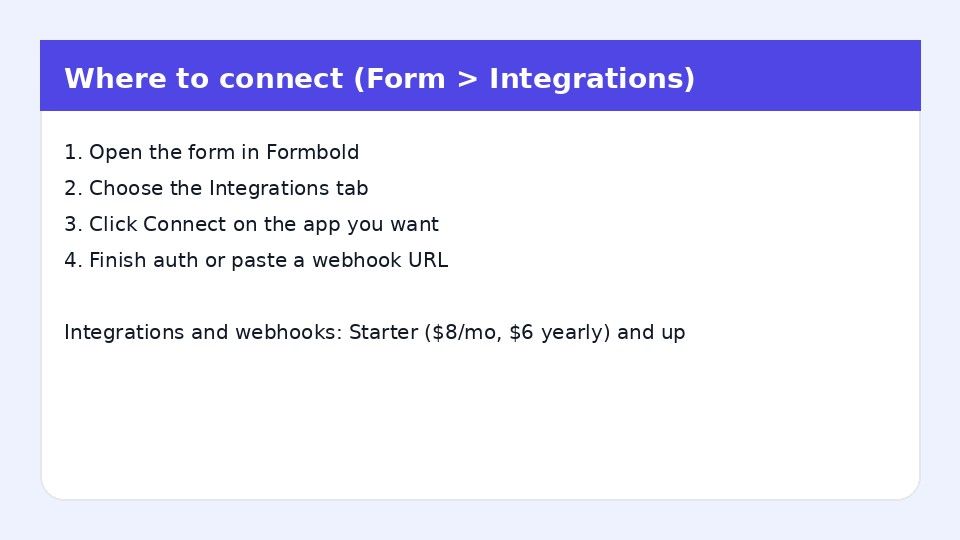
  1. Open your form in FormBold and go to the Integrations tab.
  2. Find Discord and click Configure.
  3. Paste the webhook URL.
  4. Click Save & Connect.

Step 3: Test it

Submit a test entry from your website. The embed card should appear in your Discord channel.

You need permission to manage webhooks in the Discord server to complete Step 1.

Common Uses

  • Contact forms: Your team sees new inquiries in the same place they already talk.
  • Bug reports and feedback: Players or users report issues on your site, and the details land in your dev channel.
  • Community and staff applications: Moderators review new applications in a private channel.
  • Beta and waitlist signups: Track new signups as they come in.

Each FormBold form has its own Discord settings. To send your contact form and your bug report form to different channels, create a separate webhook for each channel.

Frequently Asked Questions

Do I need to write a Discord bot?

No. Discord webhooks let FormBold post messages without a bot. You only copy a URL from Discord and paste it into FormBold.

Where do I find the Discord webhook URL?

In your server, go to Server Settings, then Integrations, then Webhooks. Create a webhook and click Copy Webhook URL.

What does the message look like?

Each submission appears as an embed card that shows the form fields and the submission time.

Do spam submissions reach Discord?

No. FormBold checks each submission for spam before it sends anything to Discord.

Can I still get email notifications?

Yes. Discord runs alongside email notifications and any other integrations on the same form.

How do I change the channel?

Create a new webhook for the new channel in Discord, then paste its URL into the Discord settings in FormBold.

Start building automated forms in 60 seconds

No backend required. Just paste your endpoint and start receiving leads, messages, and submissions immediately.