

Why put form entries in Slack?
A shared inbox is where contact form emails go to be ignored. A post in #sales gets seen by whoever is online, and someone can claim it with a thread reply before the lead goes cold.
What the message looks like
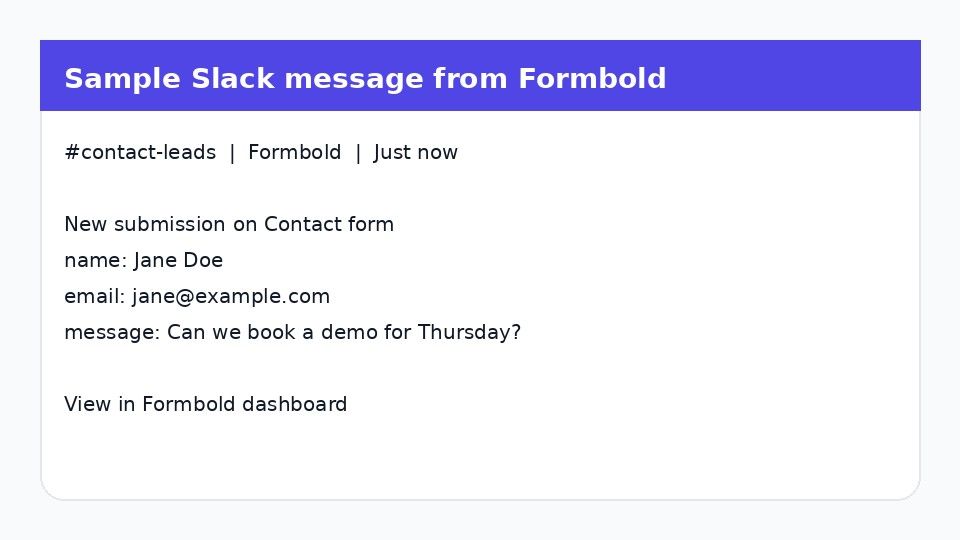
One message per submission. Each field the visitor filled in gets a line, labelled with the input's name attribute, and there's a link to the full entry in your Formbold dashboard.
| Field in form | What Slack shows |
|---|---|
| name | Line in the message body |
| Line in the message body | |
| message | Line in the message body |
| submitted_at | Timestamp on the message |
If your inputs are called field_1 and field_2, that's what Slack will show. Rename them to email or company before you connect.
Channels people usually point forms at
- #sales for demo and contact requests.
- #support for help forms, so the conversation sits next to the rest of the queue.
- A private #hiring channel for job applications. Keep this one private, since applications carry personal details.
How do I connect it?
- Open the form in Formbold and switch to the Integrations tab.
- Click Connect on the Slack card.
- Sign in to Slack when it asks, choose the channel, then send yourself a test submission.
What plan is Slack on?
Slack needs Starter, Premium or Business. Starter costs $8 a month, or $6 a month billed yearly. On Free you still get the email for every entry, plus the REST API and MCP server if you'd rather build your own bot.
Common questions
Will I still get the email?
Yes, unless you switch it off. Slack is an extra destination, not a replacement.
Can two forms post to different channels?
Yes. The connection is set per form, so your careers form and your contact form never have to share a channel.
Screens, permissions and fixes for the usual errors are in the Slack setup guide.